
No More Screenshot Stress: Zoom Meetings and Online Classes Auto Screenshot Assistant
This tool helps you free your hands during video meetings and online courses so you can focus on thinking. Currently in beta.

Having meetings on Zoom has become an everyday routine at work. Departments take turns presenting. Slides flip one after another. The speaker changes constantly. The pace is rarely slow—sometimes people even edit their PPT while presenting.
After any meeting, I used to fear two things: missing a key slide, and realizing later that I had nothing truly useful saved when I wanted to review. At first, I did the obvious thing: I recorded the screen.
After a few times, I noticed the problem. A two-hour Zoom meeting turns into one massive video file. You are not going to rewatch the whole thing just to find one slide. What usually happens is this: it sits on your hard drive. Occasionally you remember, "I think I recorded that meeting." But when you consider opening it, you realize you do not have the time to scrub through the timeline. Technically, the information is saved. In practice, it is barely used.
Later, I switched to taking screenshots instead of recording video. When I saw an important chart, I hit the shortcut. When I heard something critical, I quickly captured the current slide. At first, I felt clever.
But over time, a new problem appeared: I had turned into a semi-automatic screenshot machine. During meetings, half my brain was listening. The other half was thinking: Should I capture this slide? Did I forget the previous one? Is this the chart the boss will ask about later?
Sometimes I was a second too slow and had to ask someone for the PPT afterward—or dig through a recording. I wanted to focus on the meeting, but I kept getting interrupted by the question: "Should I screenshot this?"

Online classes felt the same. Especially high-density courses. The instructor switches between slides, a browser, and a software demo. Look away for a few seconds and you might miss a key step. Sure, you can record the session. But I kept asking myself the same question that became the title of this post: how to take notes from Zoom without recording everything?
Most of the time, I do not want to rewatch a full recording. I just want to quickly review key visuals afterward and turn them into my own lecture notes. Over time, I realized my need was more specific than I first thought.
I do not need continuous recording. I need snapshots when content actually changes. I do not want to constantly press a shortcut during meetings or classes. I want a clean visual timeline afterward. And I do not want everything uploaded to the cloud. I want the files quietly stored in a local folder that belongs to me.
From these everyday frustrations, I built a small tool: CUSTRA. If I had to describe it in one sentence, it is a local auto screenshot assistant that captures only when the screen changes.
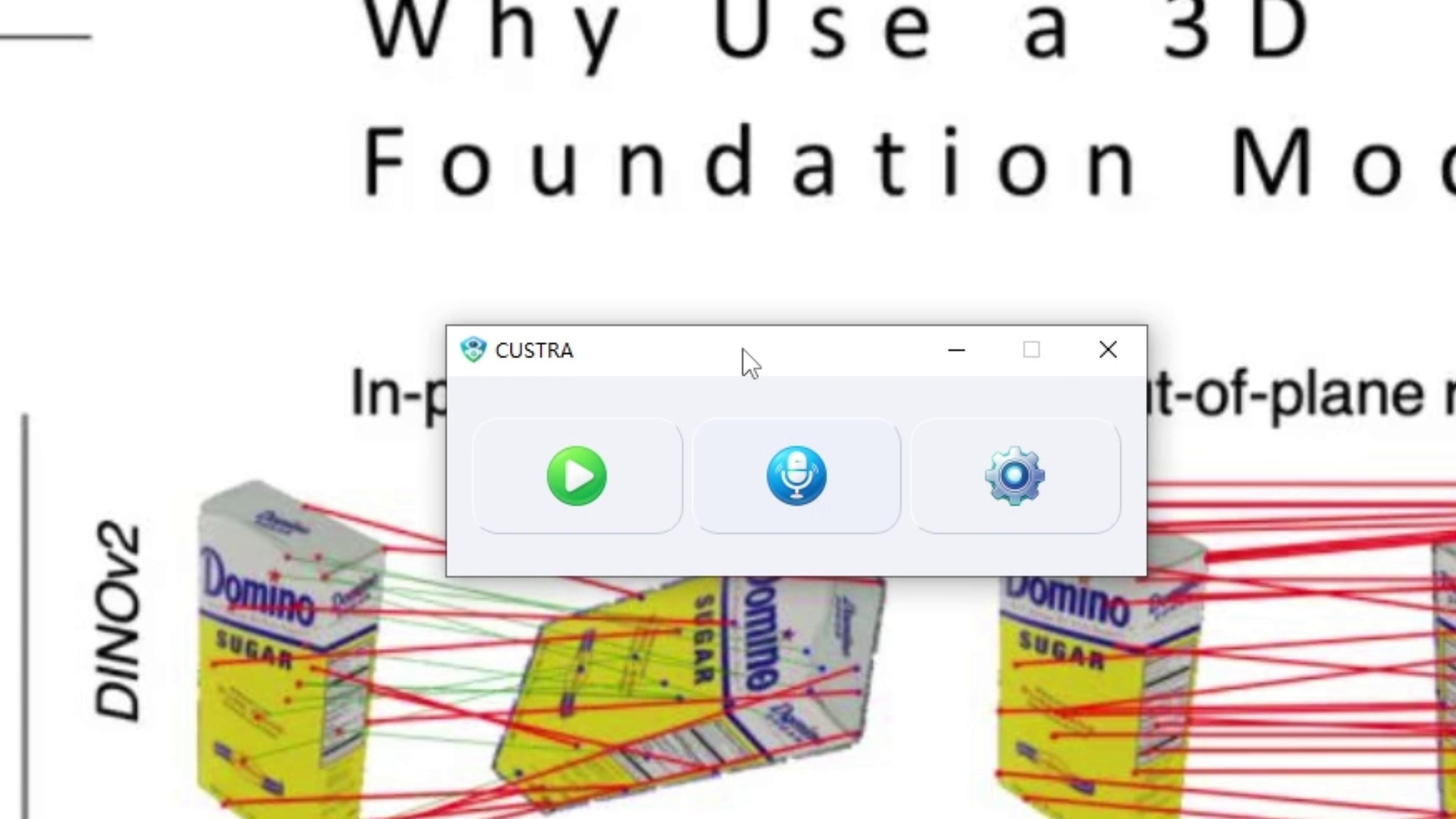
I did not try to make it feature-heavy. I did not build a massive cloud service. I simply wanted to satisfy a very specific habit of mine: during meetings and classes, I want to focus on listening—and let my computer watch the screen.
I first built CUSTRA for company meetings. There was a period when Zoom meetings were intense. Internal discussions moved fast. Some decisions were never fully documented. Later, someone might ask: "How did we discuss this at the time?" or "Where did that data on the slide come from?" Without a visual trace, it is hard to reconstruct the context.
Before CUSTRA, my workflow looked like this: Zoom in full screen. One hand hovering over the screenshot shortcut. Press when something "looks important." Manually organize screenshots afterward. At first, it felt productive. Eventually, I realized my attention was constantly fragmented. Sometimes I was debating whether to capture a slide while the real key point came in the next sentence—and I missed it.
That is when I thought: what if a tool could handle screenshotting Zoom meetings for me, instead of relying on my judgment every few seconds? So here is what CUSTRA does today: it does not record everything like traditional screen capture software. Instead, it monitors your current screen. When it detects a meaningful visual change—like a slide switch, browser content update, or window change—it captures a screenshot automatically.
If it is just the mouse moving slightly on the same slide, it will not spam you with nearly identical images. After a meeting, instead of a multi-gigabyte video file or dozens of repetitive screenshots, I get a sequence of images aligned with the content rhythm. Each image usually corresponds to a distinct information point: a report page, a conclusion, an explanation. They are arranged chronologically, with timestamps, forming a visual timeline. A quick review is enough to recall the structure of the meeting.
Online courses actually pushed me even more to build this tool. I take various online classes—programming, data analysis, and more. In technical courses, the need to screenshot online class slides is constant. Slides are dense. The instructor moves quickly. If you focus too much on note-taking, you miss explanations. If you take no notes, you forget most of it within days.
I used to record sessions and tell myself I would rewatch them. Reality? A two-hour lecture, even at 1.5× speed, still takes serious time. And what I really needed were just a few key visuals to build my own screen capture lecture notes.
Now I simply run CUSTRA during class. I do not press anything. When the instructor switches slides, opens a browser demo, or moves to the IDE, it captures automatically. After class, I see a "course trajectory" made of screenshots—from introduction to examples to formulas to the final summary. It feels like having a visual-only lecture notebook.
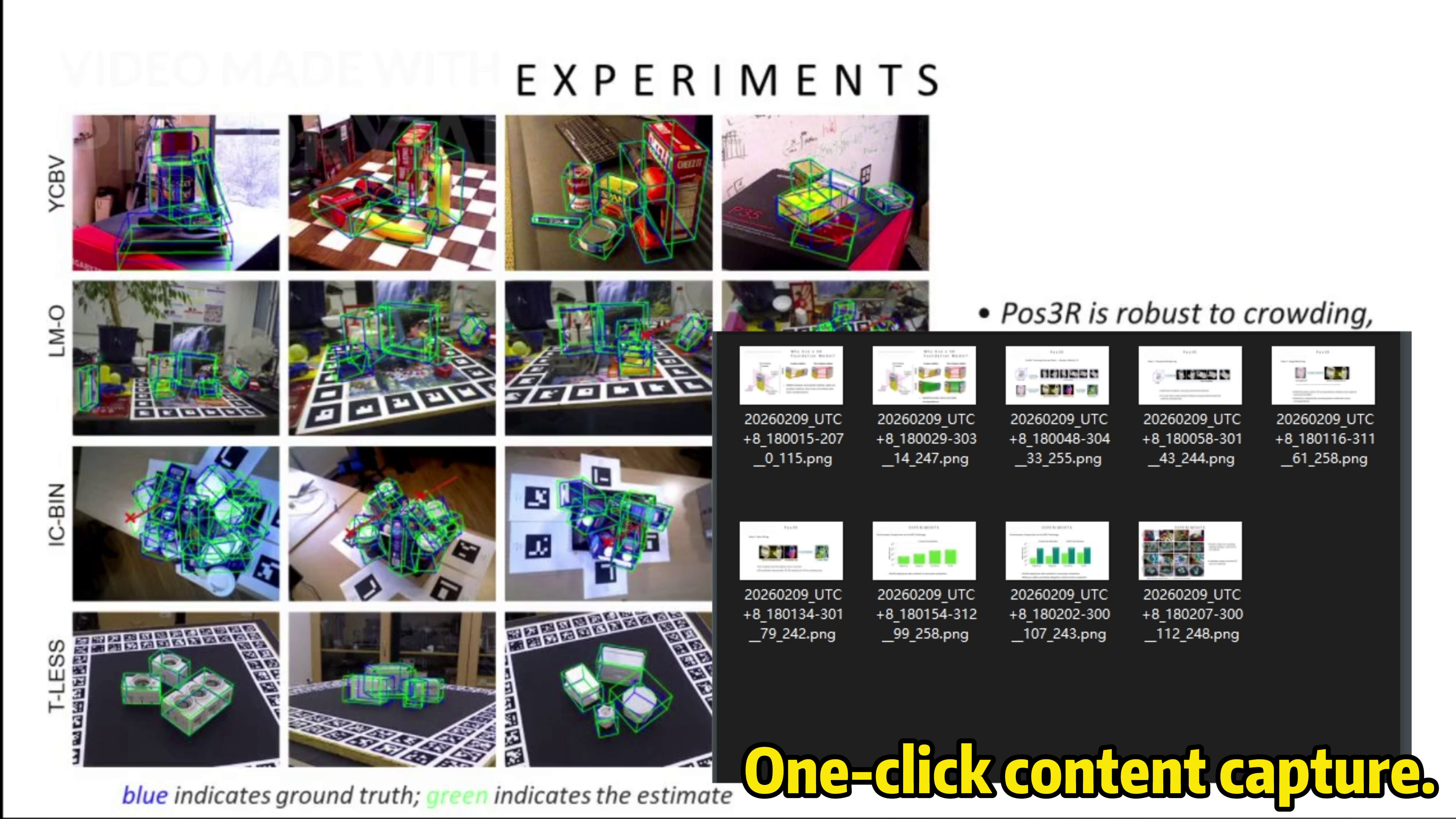
Later, when I have time, I convert those visuals into structured notes: text, formulas, code, in my own system. Compared to digging through long recordings, this feels much lighter and closer to how I actually review.
Another important aspect for me is where the data lives. Today, many tools automatically sync screenshots, recordings, and notes to the cloud. That makes multi-device access easy and enables all kinds of AI-powered features later on. There is definitely value in that.
But when it comes to meeting content or classroom material, I am personally more conservative. I am not entirely comfortable with all my screen content automatically appearing in some cloud space—even if the vendor provides solid privacy and security assurances.
So when building CUSTRA, I set one firm principle for myself: it had to be a local screen capture, no cloud tool. That means every screenshot is generated only on your own computer, stored in a directory you can see and control. Nothing is uploaded to any server. I understand that this decision limits the possibility of many "advanced" features. But for me, being clear about this upfront matters more than anything else.
It also means CUSTRA feels more like a small helper living inside your computer rather than an online service. There is no account login. No internet connection required. If you switch machines, you can simply copy your entire screenshot folder over. If you stop using it, just delete the folder—no worries about cloud leftovers.
Looking back, my original motivation was actually very simple. I was not trying to build a heavy, feature-packed product. I was not trying to compete with mature cloud recording or transcription services. I just wanted to reduce the mental friction in my own real-world workflow.
I want to stop spending half my attention in meetings deciding whether I should take a screenshot. I want to stop pausing and rewinding online classes just because I am afraid I missed something. I want a natural way to preserve the truly important visuals from Zoom meetings and online classes—without forcing myself to rewatch a long recording.
CUSTRA screenshot was built gradually around that idea. It does not come with flashy features. It will not automatically summarize or write documents for you. It does one very specific thing: when the screen content genuinely changes, it quietly captures a screenshot.
The rest—understanding, thinking, organizing—is still up to you. But at least at the "recording" layer, you no longer have to wrestle with shortcut keys or video timelines. You can shift more of your attention back to the content itself: how decisions are made, how concepts are explained, how ideas slowly take shape in your own mind.
If you often struggle with screenshots during Zoom meetings and online classes, maybe this approach is worth trying. It does not have to be CUSTRA. At its core, it is just a mindset: let tools handle more of the repetitive work. Let yourself stay focused.